How to Get a Fujifilm X100VI Film Look on Any Photo Online
Give any digital photo Classic Chrome, PROVIA, or ACROS color, highlight roll-off, Clarity, and silver-halide grain in your browser. Export a PNG free.
TL;DR
- Switch between Classic Chrome (muted sky/documentary shadows), PROVIA / Standard (balanced color), and ACROS (silver-halide monochrome) on any existing photo.
- Pair Clarity, Highlights softness, and ISO-coupled film grain for natural highlight roll-off instead of harsh digital clipping.
- Try the Fujifilm X100VI filter locally in your browser; Artfkt desktop exports full resolution without marks and adds saved projects.

To get a Fujifilm X100VI look on a photo you already took, open Fujifilm X100VI in Camera Filters’ free browser demo, choose Classic Chrome, PROVIA / Standard, or ACROS, and balance Clarity, Highlights, and Grain before exporting a PNG. These controls interpret film-simulation tone matrices, optical highlight wrap, and silver-halide texture directly on your device; camera and simulation names describe creative inspirations rather than official manufacturer firmware profiles.


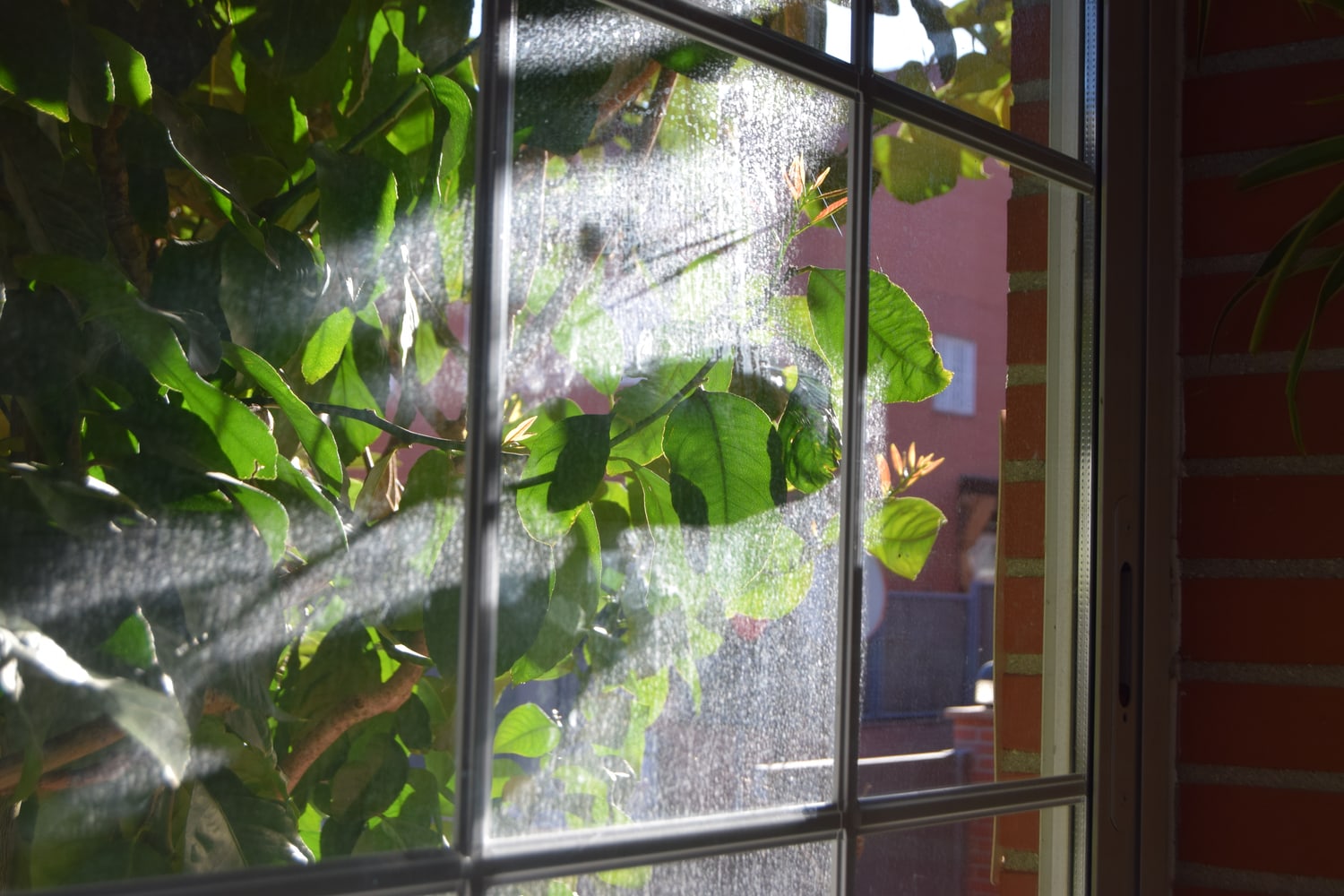
Try Fujifilm X100VI on your photo. Select Open photo in the demo to test street shots, sunlit portraits, or travel frames, or download the window-leaves practice photo (1500 × 1000 JPG, Elena Zheng via WordPress Photo Directory, CC0 1.0).
Classic Chrome vs PROVIA vs ACROS
Each Simulation choice swaps the linear color matrix and tone curve while preserving your Clarity, Exposure (EV), and Highlights wrap:


- Classic Chrome mutes cool cyans slightly and anchors shadows for editorial street photography without muddy blacks.
- PROVIA / Standard retains lively natural greens and clean daylight balance.
- ACROS computes pure luminance tonal separation paired with ISO-scaled fine silver grain—compare it directly against HP5 film interpretations in black-and-white film looks.
Dial in highlights, clarity, and export
- Open Fujifilm X100VI in your browser and choose Open photo. Everything processes on your device; see the privacy policy.
- Pick your base Simulation, then use the Fujifilm X100VI control reference to shape micro-contrast (Clarity
+10%to+25%) and soften bright speculars (Highlights25%–40%) before touching exposure. - Want compact digicam flash or sprockets around your graded frame? Explore digicam photo looks or wrap any camera recipe inside a 35mm film strip border.
- Export with Export → PNG (free demo exports include a small Artfkt watermark and cap stills at
1080px; Artfkt Desktop for Mac and Windows exports clean full resolution, loads.cubeLUTs, and saves editable projects).
| Simulation | Clarity | Highlights | Grain | ISO |
|---|---|---|---|---|
| Classic Chrome | +15% |
35% |
28% |
800 |
| PROVIA / Standard | +10% |
25% |
15% |
125 |
| ACROS | +25% |
30% |
45% |
3200 |
Matching the simulation to your lighting
Most blown-out or flat results come from treating midday sunlight and overcast shade with identical settings. Start by matching Highlights and Clarity to the contrast already in your file:
- Harsh sun and bright reflections: Raise Highlights to
30%–45%first and keep Exposure (EV) conservative (-0.20to0.00). Highlight roll-off wraps bright sky and chrome gently instead of hard digital clipping, though neither Highlights nor Exposure (EV) can recover solid white pixels that clipped before upload. - Overcast streets and flat indoor light: Nudge Clarity toward
+15%to+25%with PROVIA / Standard or Classic Chrome to crisp up stonework, fabric, and typography without pushing blacks into mud. - Portraits and grainy phone shots: Lower Grain and choose
125or400ISO on close portraits or low-light smartphone files so silver-halide texture does not multiply on top of existing sensor noise.
Common questions
Can I get a Fujifilm X100VI look on an iPhone or non-Fuji photo?
Yes. Open any existing JPEG, PNG, or WebP from an iPhone, Android phone, or another camera in Camera Filters and everything renders locally in your browser. The Fujifilm X100VI effect models film-simulation tone curves, optical highlight wrap, Clarity, and ISO-scaled grain artistically on your device rather than running Fujifilm camera firmware.
Does this filter include Classic Negative or custom in-camera recipes?
This effect provides Classic Chrome, PROVIA / Standard, and ACROS—not Classic Negative or custom in-camera XML recipe imports. When you want warmer vintage-negative shadow tints or a custom third-party .cube film table on top of a graded frame, combine Curves and Color LUT in Artfkt.
Why does Classic Chrome look flat or dark on some photos?
Classic Chrome deliberately softens saturation and pulls back blues, cyans, and skin vibrance for a restrained documentary mood. If a shaded photo feels overly muted, nudge Exposure (EV) up by +0.15 to +0.30 or switch Simulation to PROVIA / Standard for brighter daylight greenery and punchier color.
Are my photos uploaded, and what is the export limit?
No images leave your computer or phone during editing or export. Free browser demo downloads export transparent or solid PNG stills up to 1080px with a small Artfkt mark; Artfkt Desktop (US$29 launch / US$39 regular, one-time on Mac and Windows) removes watermarks, exports full native resolution, loads .cube LUTs, and saves .artfkt project files.
Make something unexpected
No subscriptions. More room to create.
Bring all collections and multiple image layers together in one desktop studio. Build a look, shape its motion, and save your next starting point.
Pay US$29 once at launch (regularly US$39). Includes all current collections and Artfkt 1.x updates.
Future major upgrades are not included.